GGED HUBEXAM BOOKING SERVICE
GED EXAM BOOKING ASSISTANCE

Your GED Journey, Made Easier.

Reliable assistance for GED exam scheduling and booking.

GED HUB
4 Subjects

One place for your booking journey.

Booking requests · Payment guidance · Appointment updates


How It Works

A clear process from request to confirmation.

1
Submit Request

Enter your GED account details and preferred appointment.

2
Check Availability

GED Hub checks availability and coordinates with you on Telegram.

3
Confirm & Pay

Approve the appointment and pay only when your status is Awaiting Payment.

4
Get Confirmation

Wait for your official appointment confirmation from GED Hub.

Quick Access

Find the information you need.

▣

Booking Guide

Learn how to request and confirm an appointment.

$

Payment Guide

MMQR, all wallets (PAY), and receipt verification.

✓

Booking Status

Check your booking using only your reference ID.

BOOKING REQUEST

Book Your GED Exam

Submit a request for your preferred appointment. A request is not a confirmed exam booking.

GED Account Details

Your password is encrypted. Only authorized admins can use it for this booking. It is deleted when the booking is marked Booked, Cancelled, or Unavailable.

Preferred Appointment

Need help? Contact @ged25hub or gedhub.contact@gmail.com.

STUDENT RESOURCES

Help Center

Your guide from booking request to confirmation.

▣

Booking Guide

  1. Enter the name on your GED account, login email, and login password.
  2. Choose your subject, country, city, test center, preferred date, and time.
  3. Review the details, give consent, and submit your request. Save the reference ID.
  4. Click Send Reference to Telegram to open @ged25hub with your reference ready. Tap Send in Telegram. Your password is not included.
  5. GED Hub reviews availability and confirms the appointment details with you. Pay only when the status is Awaiting Payment.
  6. Upload your payment evidence and wait for the official appointment confirmation.
✓

Exam Day Guide

  1. Read the date, time, center, and requirements in your official appointment confirmation.
  2. Bring the original identification accepted for your exam, as stated in your appointment instructions.
  3. Follow the arrival time and test-center rules in the confirmation.
  4. Contact GED Hub immediately if your name, date, or center is incorrect.
$

Payment Guide

  1. Confirm your appointment and the total amount with GED Hub before paying.
  2. Use the displayed MMQR or the all-wallets (PAY) number. Verify the recipient shown in your wallet before transferring.
  3. Save your receipt. Submit your reference ID, GED login email, payment method, amount, transaction ID, and receipt.
  4. Payment Verification means your evidence is being reviewed. It is not an appointment confirmation.

Policies

Terms & Conditions

Provide accurate details, review the appointment before payment, and follow the exam provider’s rules. A request is not a confirmed appointment.

Cancellation & Rescheduling

Contact GED Hub promptly with your reference ID. Changes depend on availability, provider rules, and applicable fees. Ask for the terms before payment.

Refund Policy

Refund eligibility depends on the transaction, booking stage, and provider rules. Contact GED Hub with your reference ID and receipt; confirm applicable terms before paying.

Privacy Policy

GED Hub stores account and appointment details to process bookings. Passwords are encrypted, available only to authorized admins, excluded from exports, and deleted when marked Booked, Cancelled, or Unavailable. Contact gedhub.contact@gmail.com for correction or deletion requests.

How do I check my booking?

Enter only your reference ID on the Booking Status page. No email is required. Keep your reference private.

How do I read the reference ID?

Example: GH-2611-014-HW2G. 26 is the year, 11 is the month, and 014 is the monthly sequence (000–999). The last four characters contain three random letters and one digit.

Are confirmation emails automatic?

Automatic email delivery is not enabled. GED Hub staff coordinates with you and sends the official confirmation separately. Contact @ged25hub for updates.

PAYMENT INFORMATION

Payment Guide

Confirm your appointment and total with GED Hub. Pay only when your status is Awaiting Payment.

▦

MMQR

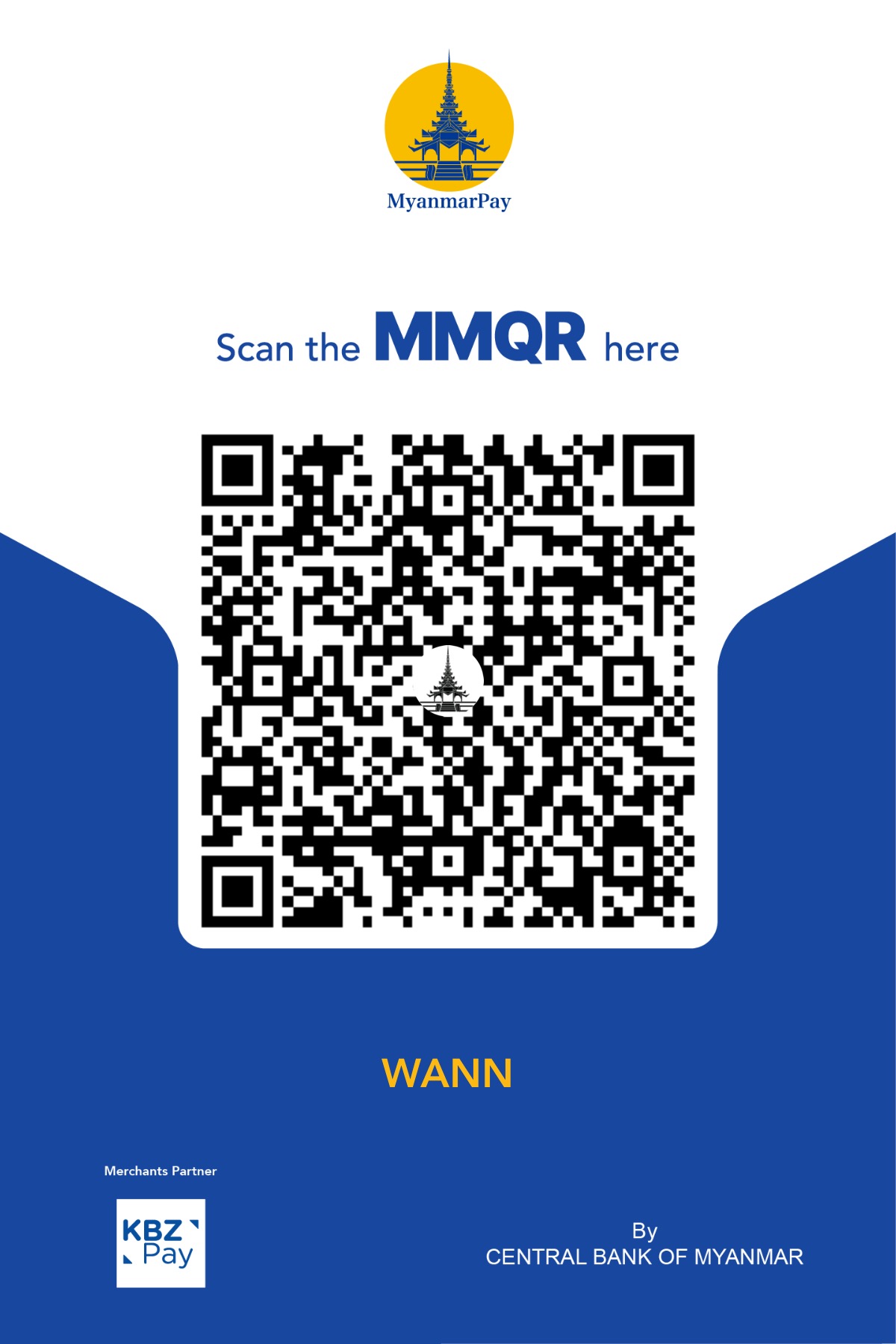
MyanmarPay MMQR — WANN

WANN

Open the image at full size or save it to scan in your wallet app. Verify the recipient before payment.

Save MMQR Image
$

Payment for all wallets (PAY)

Wallet Number

09958940314

Account Holder

SAI LAUNG WANN HLAING

Use the number above for wallet payments. Check the account holder and the agreed amount before confirming a transfer.

✈

Payment Assistance

Contact GED Hub if the wallet recipient differs or you need bank-transfer instructions.

@ged25hub

Submit Payment Record

JPEG, PNG, WebP, or PDF up to 5 MB. Only authorized admins can open your receipt.

BOOKING TRACKER

Booking Status

Enter your reference ID to check the status. No email is needed.

Keep your reference ID private. Account details and receipts are never shown here.

GET IN TOUCH

Contact GED Hub

Contact us through the official channels below for booking assistance.

✈

Telegram

@ged25hub

Open Telegram
✉

Email

gedhub.contact@gmail.com

Send Email
ADMIN WORKSPACE

Admin Dashboard

Sign in with your admin ID and password to manage booking requests.